

WooCommerce
Download the lomi. WooCommerce plugin and connect your store in a few steps , no GitHub account required.
WooCommerce
Connect your WordPress / WooCommerce store to lomi. hosted checkout. Customers pay on a secure lomi. page; orders update automatically when payment succeeds.
Who this guide is for
Store owners and admins: you only need WordPress, a lomi. account, and this page. You do not need GitHub or command-line tools.
Related products
- API keys: Dashboard → Developers → API keys
- Webhooks: Dashboard webhooks — subscribe to
PAYMENT_SUCCEEDEDandREFUND_COMPLETED - Hosted checkout: Checkout, where shoppers pay after redirect
- Subscriptions: Subscriptions, recurring products via checkout
Before you start
| Requirement | Details |
|---|---|
| WordPress | 6.2+ |
| WooCommerce | 9.6+ (install from Plugins → Add New if needed) |
| Store currency | XOF, USD, or EUR |
| lomi. account | Create one free |
| HTTPS | Required in production (for webhooks and checkout return URLs) |
Step 1, Get your lomi. API keys
- Sign in to dashboard.lomi.africa.
- Open Settings → Access tokens (or Developers → API keys).
- Copy your Test secret key (
lomi_sk_test_…), you will paste it in WooCommerce in step 4.
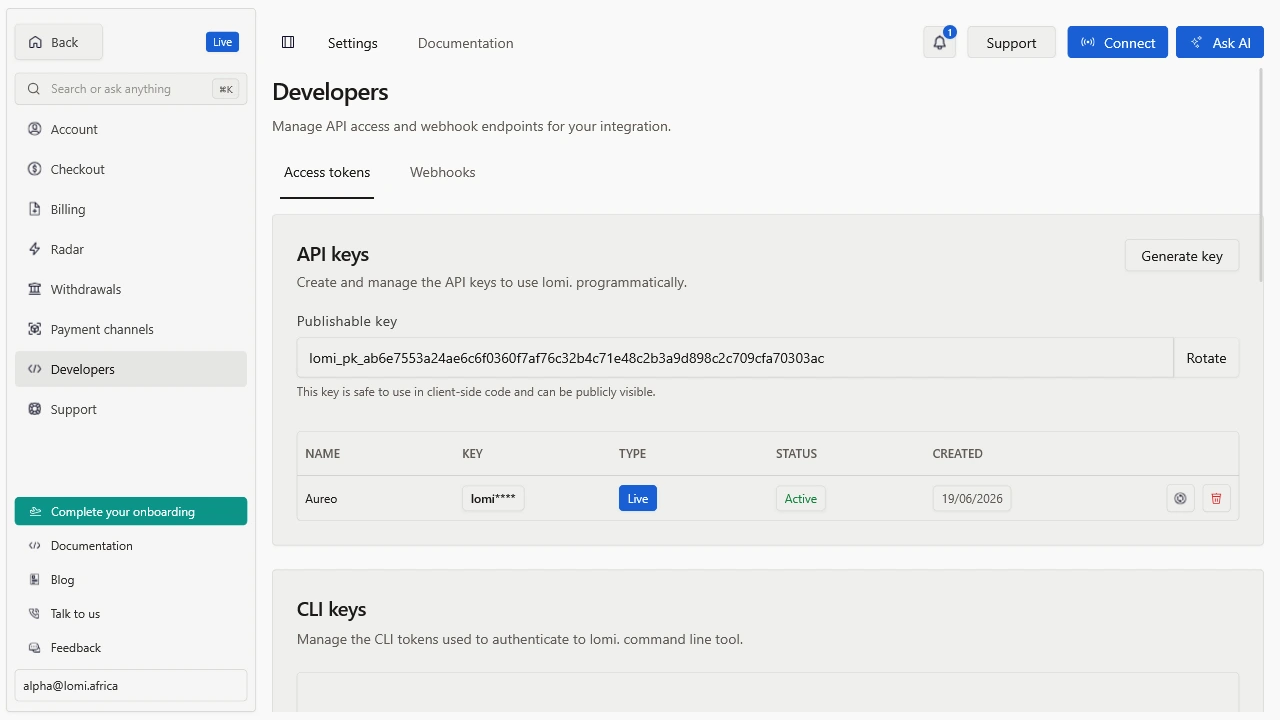
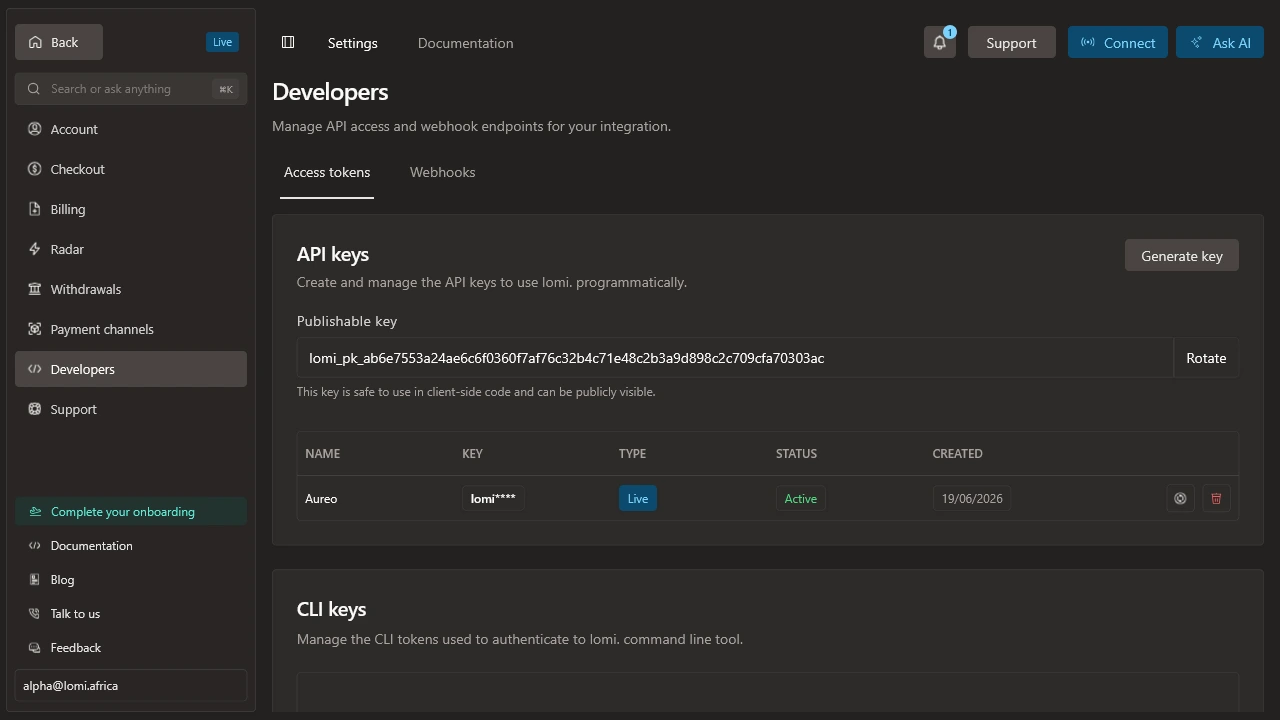
Keep Test mode on in the dashboard while setting up. See API keys for details.
Step 2, Download the plugin
The file is woo-lomi.zip. Save it on your computer (Downloads folder is fine). You will upload it in the next step.
Download not working?
If the button returns an error, contact lomi. support or your account manager, we will send you the current zip. Maintainers also publish the same file on GitHub Releases (woo-v* tags).
Step 3, Install in WordPress
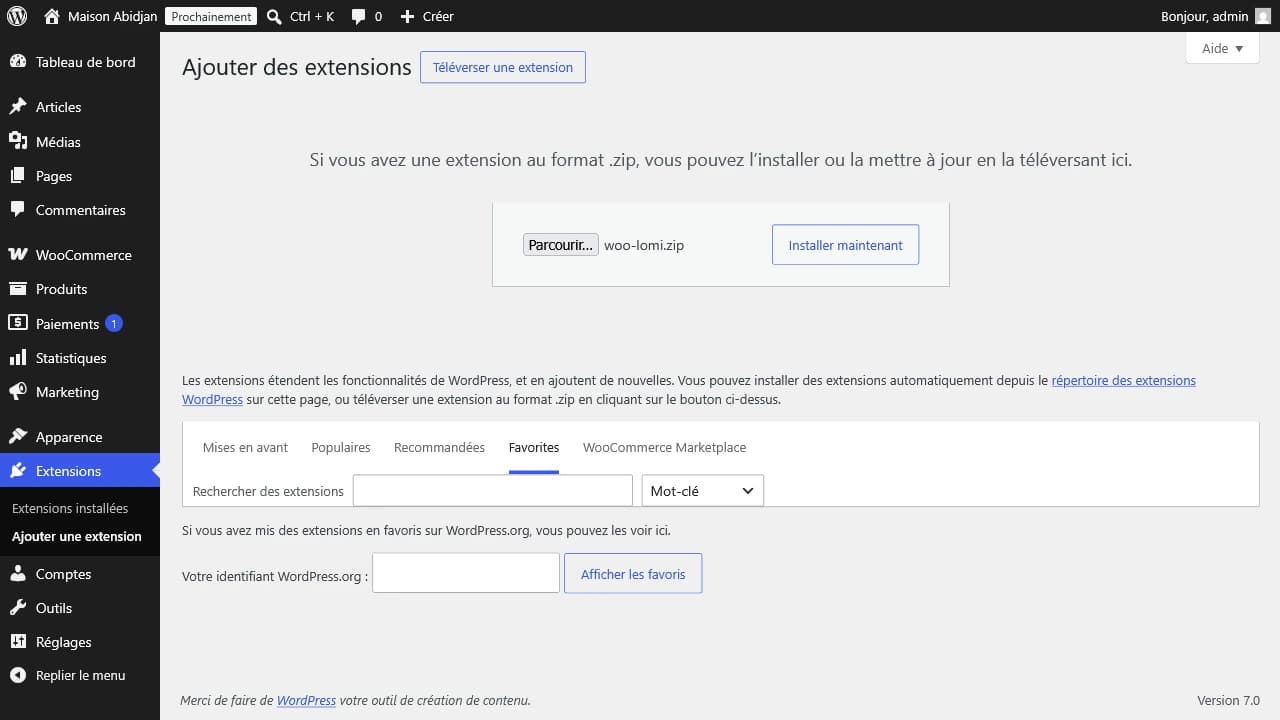
Open the upload screen
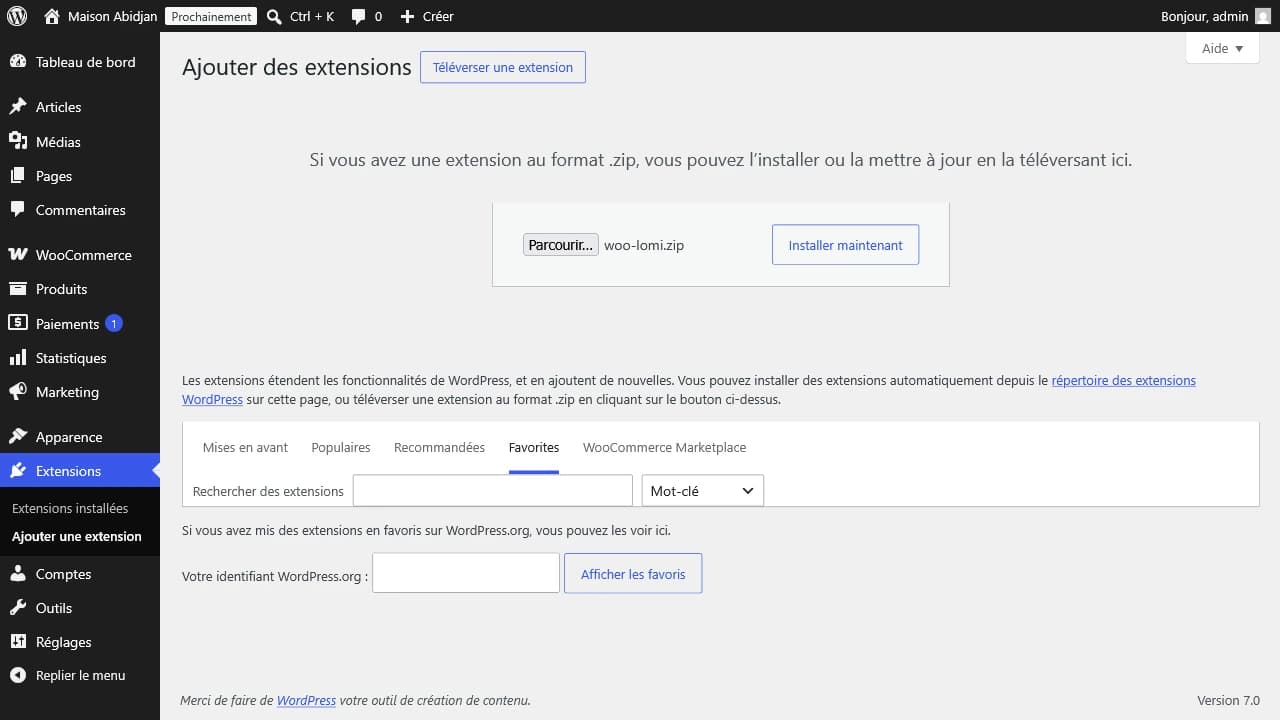
In WordPress admin: Plugins → Add New → Upload Plugin.
Upload the zip
- Click Choose File and select
woo-lomi.zip. - Click Install Now, then Activate Plugin.
You should see lomi. for WooCommerce in your plugins list as Active.
Step 4, Enable lomi. in WooCommerce
Open payment settings
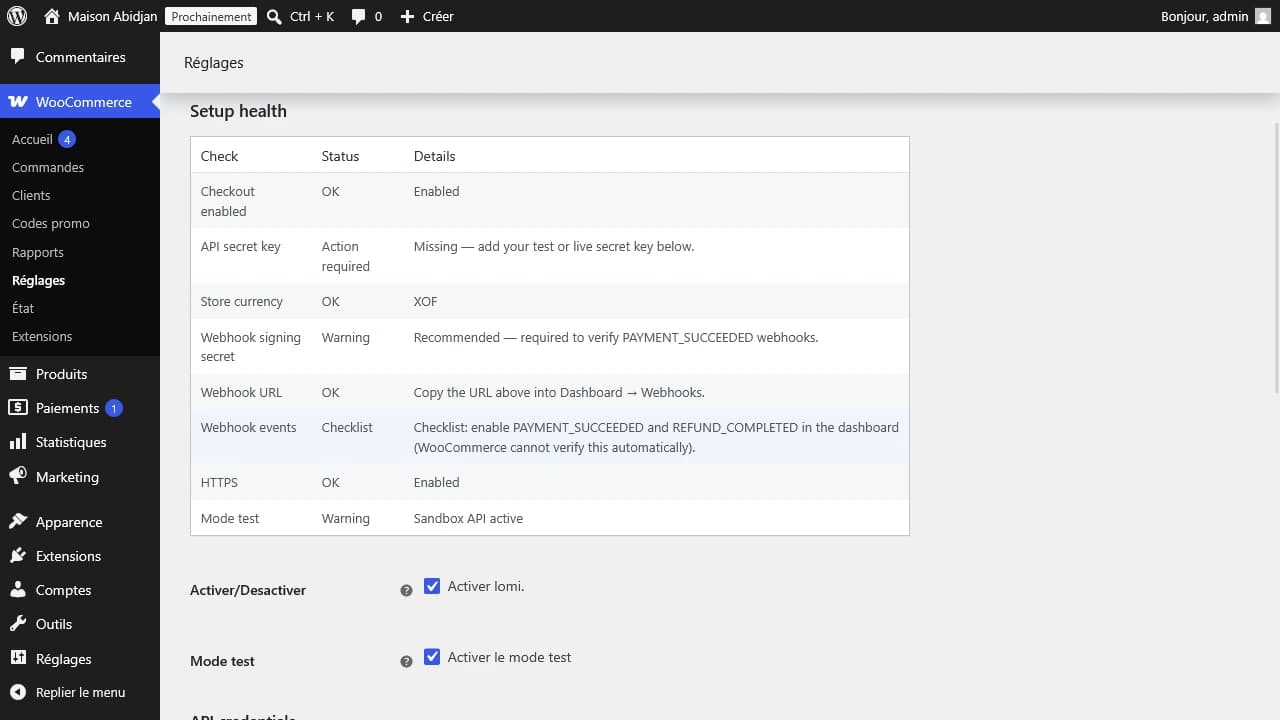
Go to WooCommerce → Settings → Payments → lomi. (click Manage or Set up).
Configure test mode
- Turn Enable lomi. on.
- Turn Test mode on while testing.
- Paste your Test secret key from step 1.
- Click Save changes.
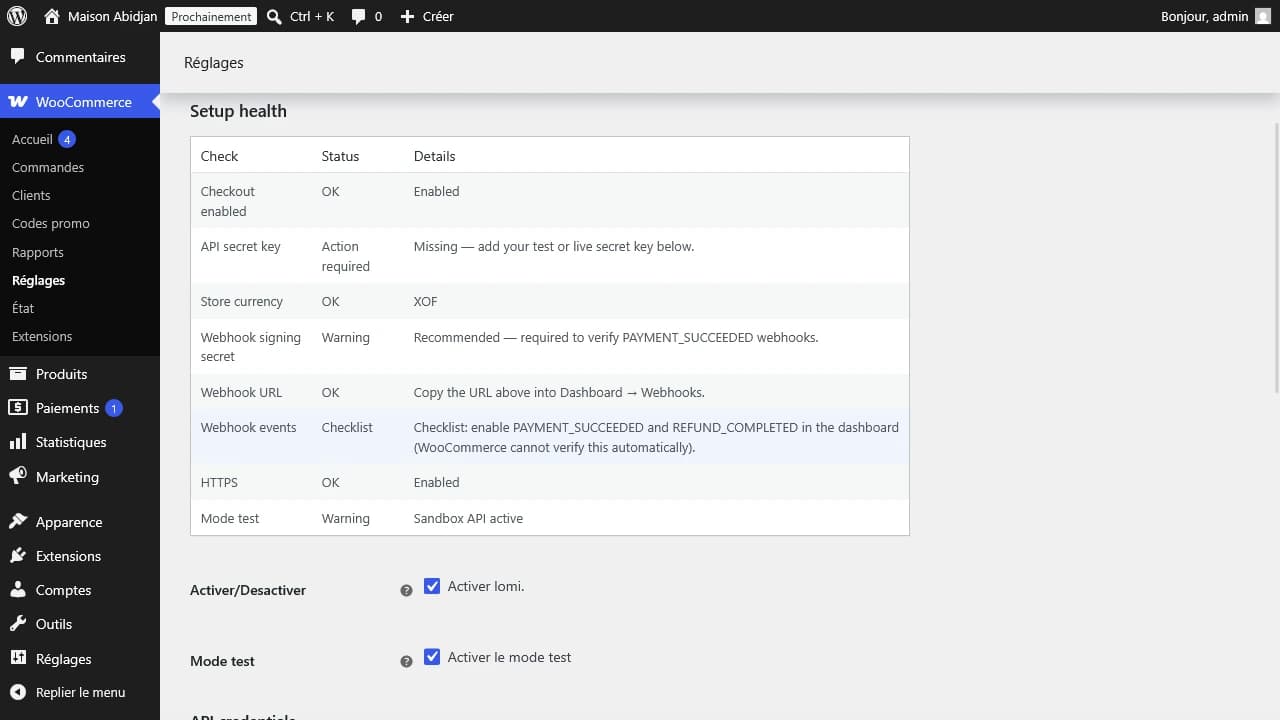
Check Setup health
The Setup health panel should show:
- API secret key: Configured
- API connection:
GET /mesucceeded - Store currency: XOF, USD, or EUR
Fix any row marked Action required before continuing.
Step 5, Connect webhooks
Webhooks tell WooCommerce when a customer has paid (even if they close the browser before returning to your shop).
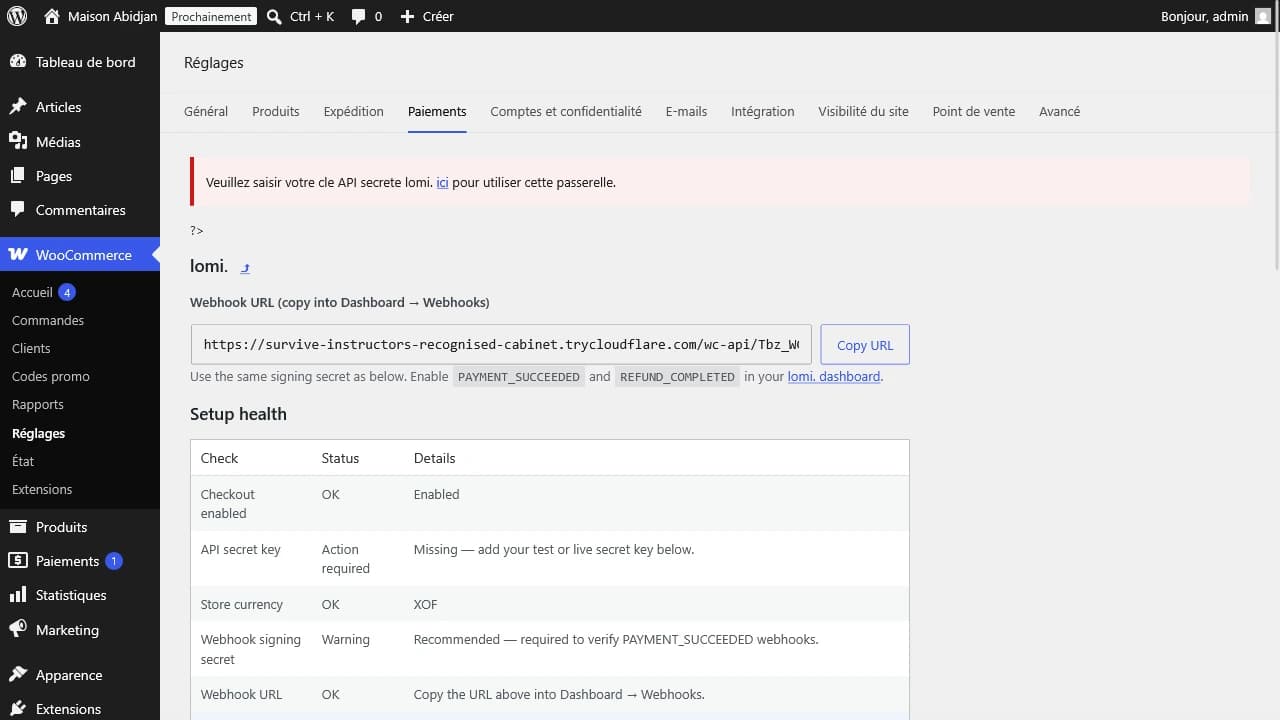
Copy the webhook URL from WooCommerce
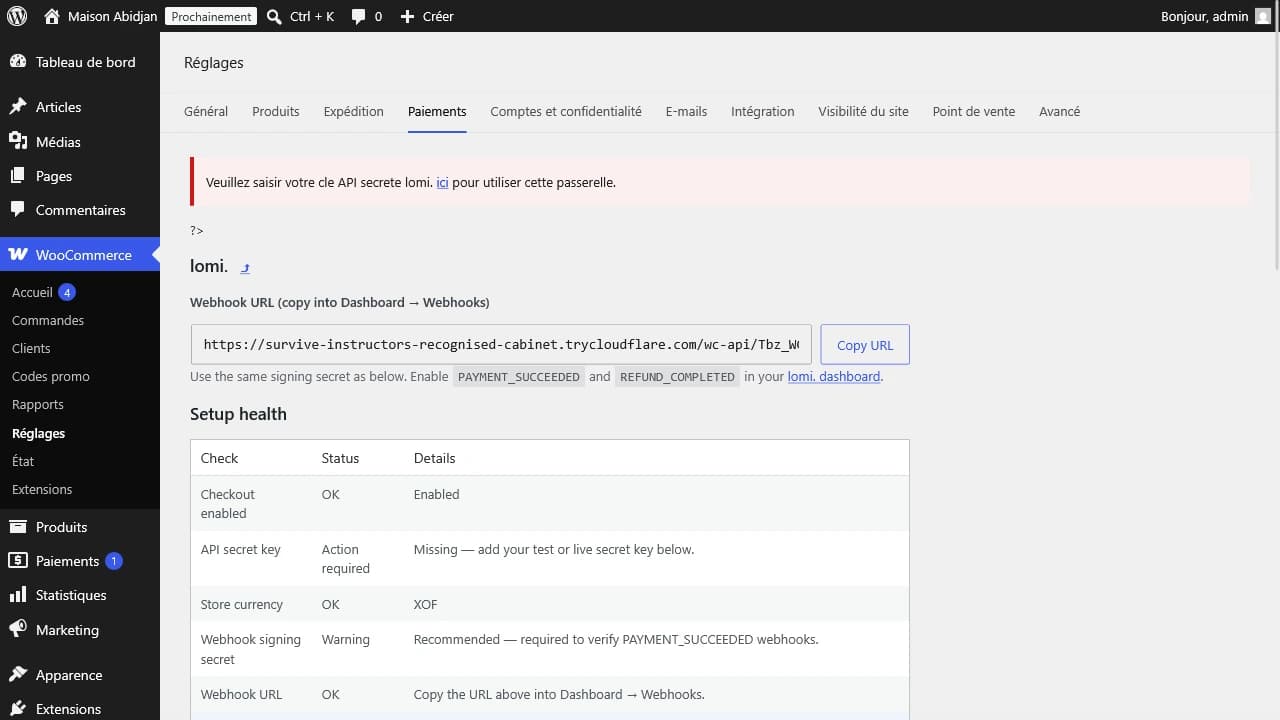
At the top of WooCommerce → Settings → Payments → lomi., copy the Webhook URL (use the Copy URL button).
Create the endpoint in lomi.
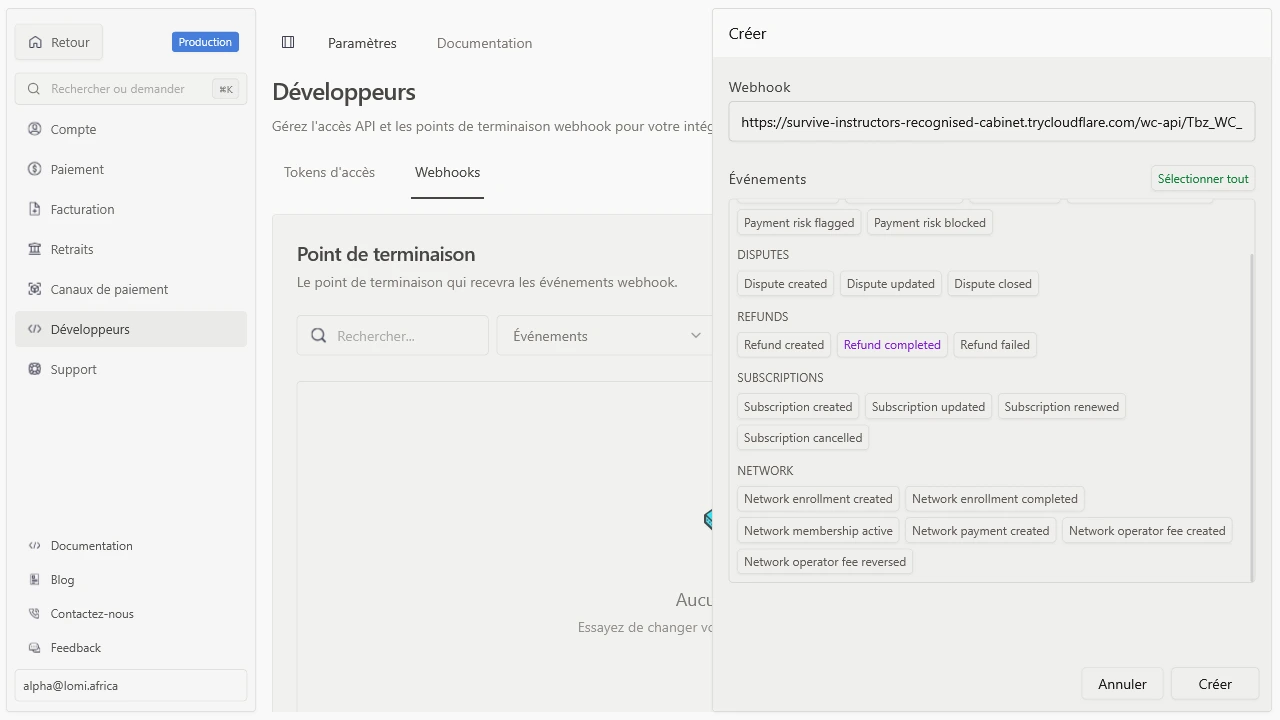
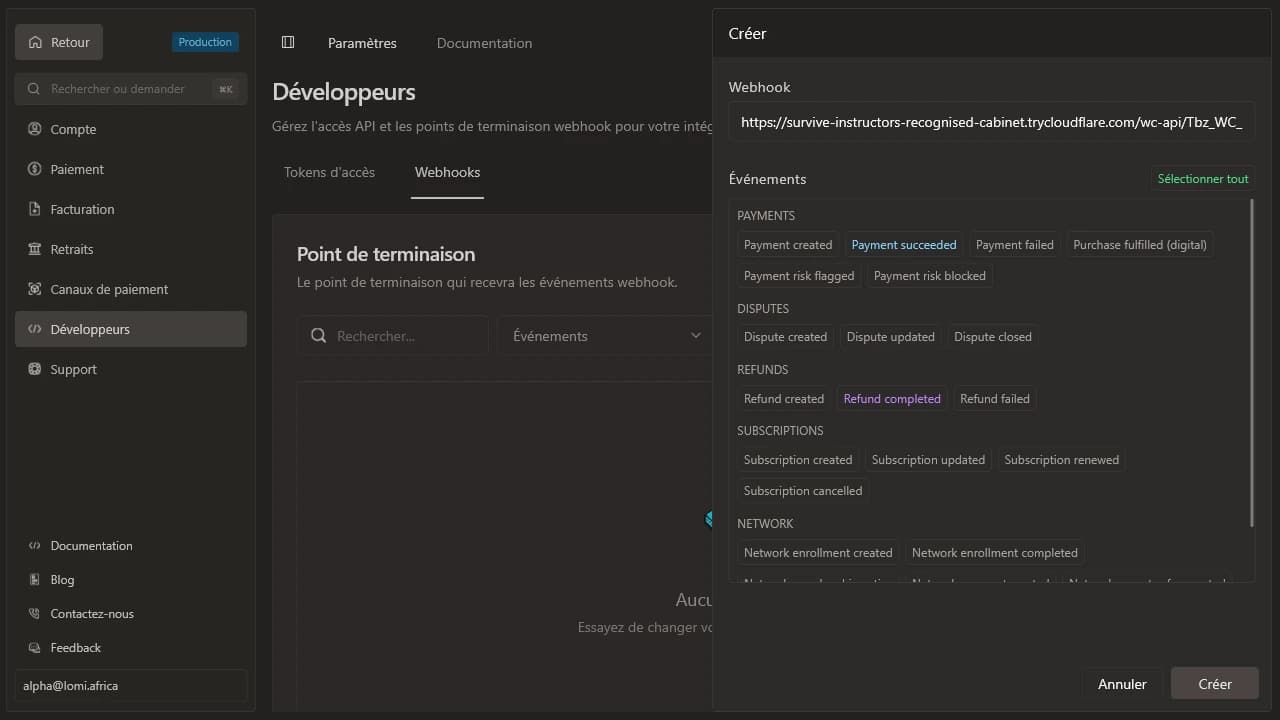
- Open dashboard.lomi.africa → Developers → Webhooks (or Settings → Webhooks).
- Add endpoint: paste the URL from WooCommerce.
- Enable events
PAYMENT_SUCCEEDEDandREFUND_COMPLETED. - Copy the signing secret (
whsec_…).
Paste the webhook secret in WooCommerce
Back in WooCommerce → Payments → lomi., paste the signing secret into Test webhook secret, then Save changes.
The Webhook signing secret row in Setup health should show Configured.
Step 6, Run a test payment
- Add a product to your store and go to Checkout.
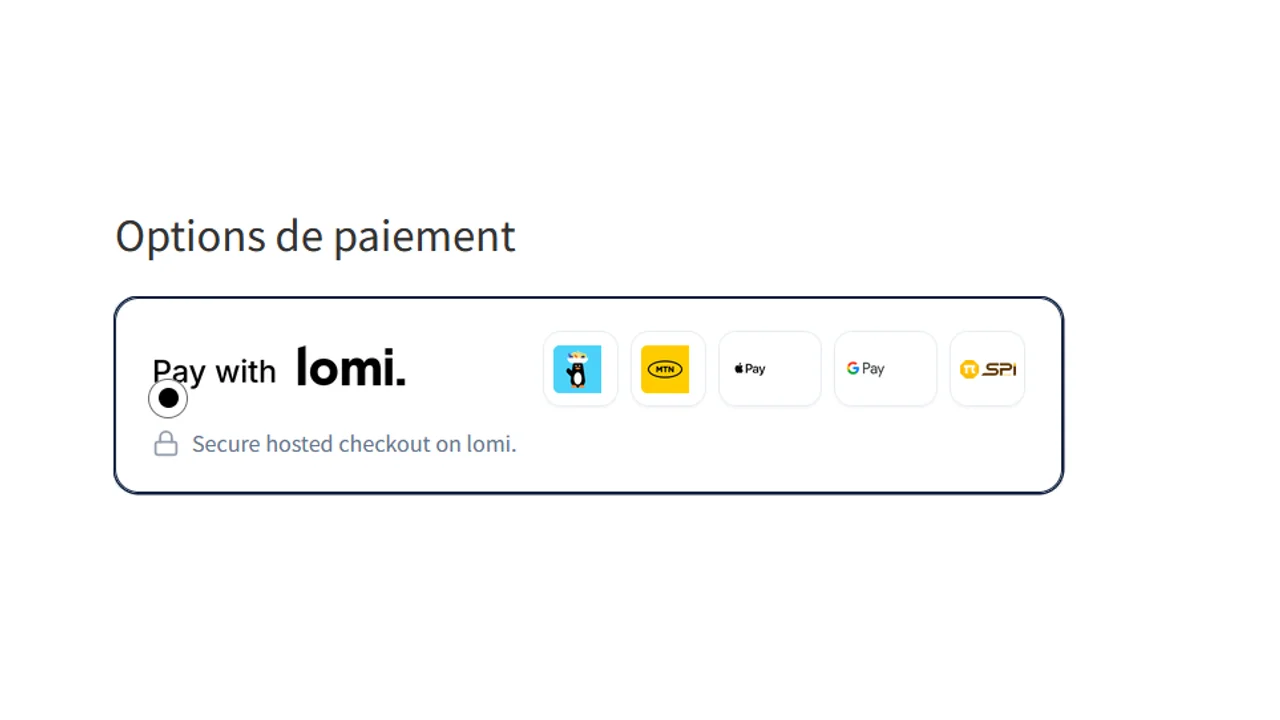
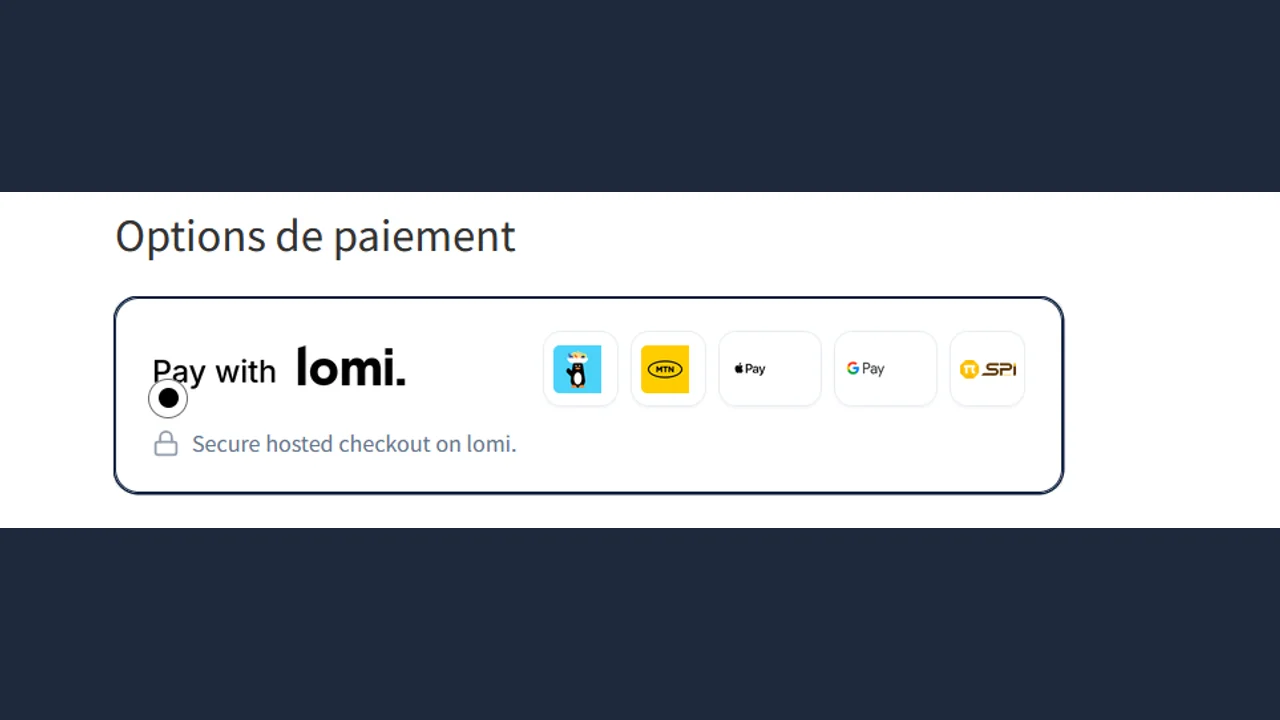
- Select lomi. as the payment method, you should see the lomi. branding card (pay-with image and payment icons).
- Place the order, you are redirected to lomi. Checkout (sandbox while test mode is on).
- Pay with test card
4242 4242 4242 4242(any future expiry, any CVC). See Sandbox payments. - Confirm the WooCommerce order status is Processing or Completed.
If the order stays Pending payment, check the webhook secret and that PAYMENT_SUCCEEDED is enabled on your dashboard endpoint.
Go live
When you are ready for real payments:
- In WooCommerce, turn Test mode off.
- Paste your Live secret key and Live webhook secret (create a live webhook endpoint in the dashboard with the same WooCommerce URL).
- Run one small real payment and confirm the order completes.
See also Verify payments.
Refunds, subscriptions, and webhooks (reference)
Refunds: From the WooCommerce order screen when the payment is linked; otherwise from the dashboard.
WooCommerce Subscriptions: Map each subscription product to a lomi price ID in the product editor lomi. tab. Renewals are billed by lomi., not WooCommerce.
Webhook headers: X-Lomi-Event, X-Lomi-Signature (HMAC-SHA256 hex of the raw body). Details: Handling webhooks.
Theme and checkout compatibility
The lomi. branding card (pay-with image, payment icons, secure-checkout hint) is rendered by the plugin. The payment option row around it (radio button, border, spacing) is controlled by WooCommerce and your WordPress theme.
Recommended setup
Use the WooCommerce Checkout block (not the legacy [woocommerce_checkout] shortcode). Block checkout is more consistent across themes and is what we test most often.
What we support
| Checkout type | Support level | Notes |
|---|---|---|
| WooCommerce Blocks checkout | Recommended | WC 9.6–10.x; plugin ships layout fixes for the payment radio row |
| Classic WooCommerce checkout | Supported | Uses .payment_method_lomi styles in the plugin CSS |
Themes tested before release
We smoke-test the branding card on:
| Theme | Checkout | Status |
|---|---|---|
| Storefront (WooCommerce default) | Blocks + classic | Tested |
| Twenty Twenty-Four | Blocks | Tested |
| Block themes (FSE) | Blocks | Generally compatible |
Popular builder themes (Astra, Divi, Elementor, etc.) may add checkout CSS that shifts spacing. The plugin uses namespaced classes (.wc-lomi-checkout-branding) and targeted overrides so the card stays readable in most cases.
If the payment row looks wrong
- Hard-refresh checkout (or clear cache) after updating the plugin, styles are versioned (
checkout-branding.css?ver=…). - Confirm you are on block checkout (Pages → Checkout should use the Checkout block).
- Temporarily switch to Storefront or Twenty Twenty-Four: if lomi. looks correct there, the issue is theme-specific CSS.
- Check Appearance → Customize → Additional CSS for rules targeting
.wc-block-checkoutor.payment_method_*. - Contact lomi. support with your theme name, WooCommerce version, and a screenshot, include whether you use Blocks or classic checkout.
Theme changes
Switching themes can change payment-option layout. That is expected in the WordPress ecosystem; not a sign that lomi. is misconfigured. Re-test checkout after any theme or WooCommerce major update.
For developers
GitHub, source builds, and API internals are documented separately:
- E‑commerce hub, shared API contract
- woo repository, plugin source
- Build zip locally:
pnpm run releasein the woo package (contributors only)
E‑commerce
Official and maintained plugins for hosted checkout with lomi.. WooCommerce, Magento 2, PrestaShop, and Shopify use the same public API contract for checkout sessions and merchant webhooks.
Magento 2
Lomi_Payments module, hosted checkout via checkout sessions, callback route, signed webhooks, optional REST verify.